

 German
 Greek
Greek Spanish
 Filipino
 French
 Italian
 Dutch
Dutch Polish
 Portuguese (Brazil)
 Russian
 Vietnamese
 Turkish
 Ukrainian
 Chinese (Simplified)
 Korean
 Japanese
 Thai
Thai Arabic
 Persian
How to start or join a Yappr moderation team
Step by step: file a charter, ask to join a team, vote as a masternode owner, and moderate once your team is seated.
Samuel Westrich · October 2026 · 12 min read
A series in three parts
- Dash Platform 5.0
- Who moderates Yappr?
- How to start or join a Yappr moderation team (you are here)
In my last post I explained how moderation elections work and why we chose them for Yappr. This one is the practical side: exactly what to click to start a team, join one, vote as a masternode owner, and moderate once your team wins.
Everything here runs on testnet today. Mainnet follows once Dash Platform 5.0 is active there, and the steps will be the same.
You will use two apps. EvoVote handles everything up to and including the election: reasons, charters, join requests, applying for the seat and masternode voting. Yappr is where the seated team does the actual moderating.
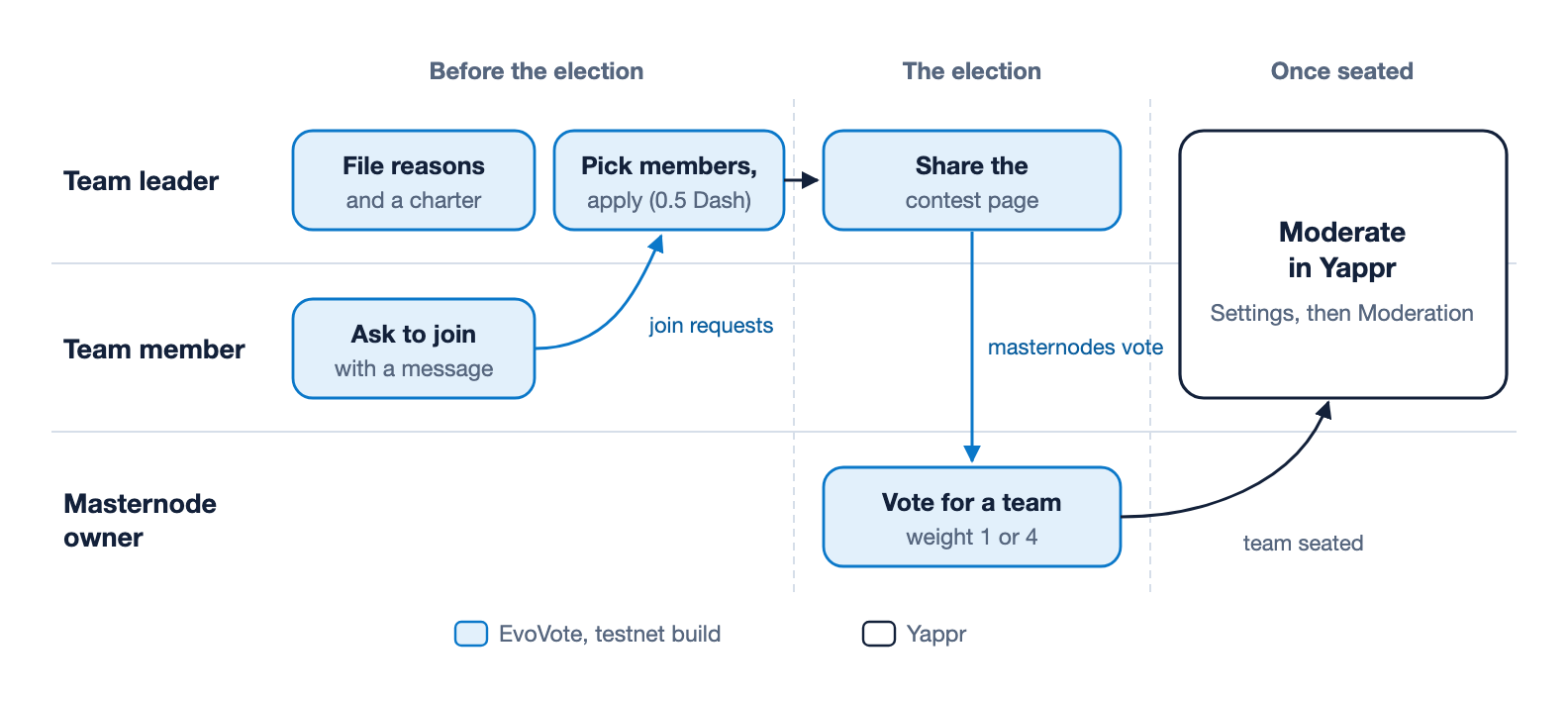
Figure 1. Who does what, and where. Everything up to the election happens in EvoVote. Once a team is seated, its leader and members moderate in Yappr.
Before you start
You need a Dash Platform identity on testnet, some testnet Dash on it, and its private keys in WIF format. The keys come from the wallet or tool that holds your identity, for example Dash Evo Tool.
| Who | Key | Used for |
|---|---|---|
| Everyone filing something | An authentication key at HIGH or CRITICAL level | Signing in to EvoVote |
| Leaders and members | Your MASTER key | Once, to add the special key below. EvoVote uses it for that one update and then drops it |
| Team leader | A decryption key for join requests (EvoVote creates it) | Reading the messages of people who ask to join |
| Team member | An encryption key for join requests (EvoVote creates it) | Sending your message to the leader |
| Masternode owner | The private key of the masternode’s voting address, plus its ProTxHash | Voting. Never paste the owner, operator or collateral key |
| Seated moderator | Your CRITICAL authentication key | Moderating in Yappr |
EvoVote keeps keys in the browser tab’s memory only. It never stores them or sends them anywhere, and reloading the page signs you out.
Roughly what it costs, in testnet Dash:
- Team leader: about 0.51. Most of that is the 0.5 Dash contest fund that pays for the masternode votes. It is not refunded, win or lose.
- Team member: about 0.002, for adding your key and sending the join request.
- Masternode owner: nothing. Votes are paid from the contest fund.
Finally, you need the id of the Yappr contract you want to moderate. Social, blog and storefront are separate contracts, and each has its own election. We will publish the ids of the testnet release contracts when they are registered.
Part 1: Start a team
You are the leader. You write the charter, collect people who want to join, and apply for the seat.
- Open EvoVote at pastapastapasta.github.io/evovote-testnet and make sure the network menu in the header says testnet.
- Sign in. Click Sign in in the top menu, paste the private key of a HIGH or CRITICAL authentication key into Private key (WIF) of one of your identity’s keys, and click Sign in.
- Find the contract. Click Moderators in the top menu. If the Yappr contract is not listed, paste its id under Add a contract and click Add. Click the contract to open its election page.
The election page shows where the election stands. Check the phase and the What the contract declares card, which shows the real join window, vote window and election delay read from the chain:
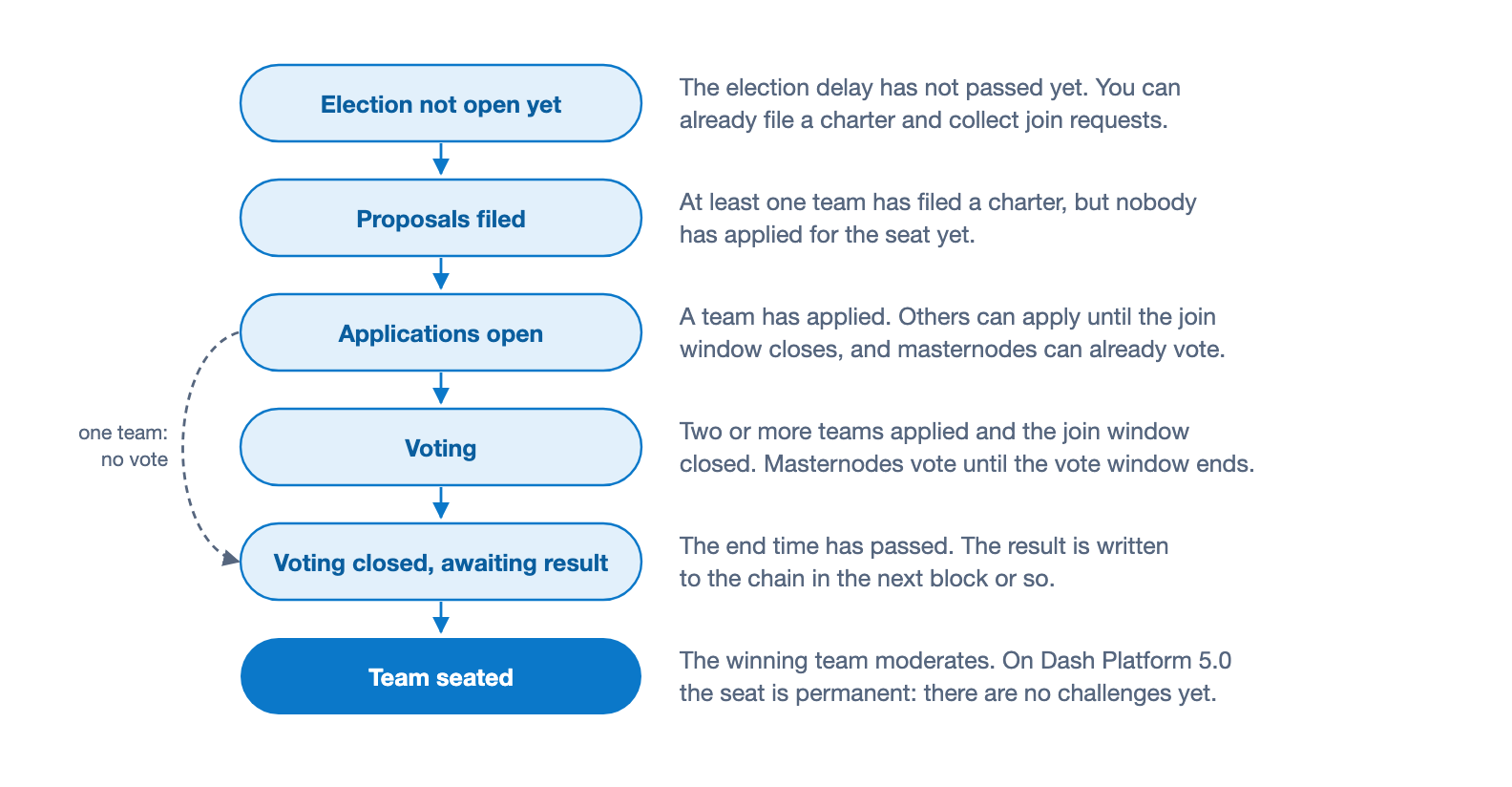
Figure 2. The phases EvoVote shows on a contract’s election page. With a single team there is nothing to vote on, so it goes straight from applications to the result.
- Open the proposal form. Under Propose a moderation team, expand Lead a team as your name.
- Pick your reasons. In 1. Reasons your team may act on, tick existing reasons, or expand File a new reason. A new reason needs a code of three capital letters (for example
SPM), a label (Spam) and an optional description. Click Review, then Sign and file the reason. Reuse existing reasons where you can: it saves fees, and it makes teams easier to compare. If you want your team to be able to run the yap.pr gateway and the Yappr app, cover the reasons DCG requires, listed in my last post. - Add your decryption key. In 2. Your decryption key, click Create a new key. Back it up with Copy or Download backup, because nobody can recover it for you. Tick I saved this private key somewhere safe, paste your MASTER key, and click Sign with master key and add. If you already added one, paste its private key and click Load key instead.
- Write the charter. In 3. The charter, describe what your team would moderate and how. Set the Moderators’ share (100% takes the full declared fee; less is a discount for everyone who posts) and the reward split between leader, equal and by actions, which must add up to 100. Click Review the charter, then Sign and file the charter.
- Share your proposal. EvoVote shows Your proposal is filed. Open the proposal page and share its link with the people you want on your team. Filing a charter does not apply for the seat yet.
- Read the join requests. On your proposal page, under Your team, click Read their messages. If you reloaded the page, load your decryption key again first. Tick the people you want, up to 15. You can also apply alone.
- Apply for the seat. Click Check and prepare the application. EvoVote shows the members, the windows, the other teams in the contest, when joining closes and voting ends, the 0.5 Dash contest fund, the fees and your balance. Read the acknowledgement, tick it, and click Sign and apply.
- Campaign. EvoVote shows You are a contender for the seat. Share the contest page with masternode owners and tell them why your team should win. If no other team applies before the join window closes, you win without a vote.
Applications only open once the contract’s election delay has passed, but you can file reasons, file your charter and collect join requests before that. If the election is close to its deadline, apply early: EvoVote warns you when less than ten minutes are left, and a tie goes to the team that applied first.
Part 2: Join a team
You want to moderate, and a leader you trust has filed a charter.
- Sign in to EvoVote the same way as a leader: Sign in, paste a HIGH or CRITICAL authentication key, Sign in.
- Open the proposal. Use the link the leader shared, or go to Moderators, open the contract, and pick the team from its Proposals list.
- Read the charter. Check the description, the reasons the team may act on, the moderators’ share and the reward split. These are the rules you would be enforcing.
- Add your encryption key. Under Ask to join this team, step 1. Your encryption key works like the leader’s: Create a new key, back it up, tick the box, paste your MASTER key, and click Sign with master key and add.
- Write to the leader. In 2. Your message to the leader, say why you want to join. Only the leader can read it, and it can be up to 1023 bytes. Click Review, then Sign and send the join request.
- Wait for the leader. EvoVote shows You asked to join this team. The leader decides whether to list you when applying for the seat. Once they apply, the contest page lists each team’s members, so you can see whether you were picked.
You can ask to join more than one team, once per charter. If EvoVote says The leader has not added a decryption key for join requests yet, nobody can join that team until the leader finishes step 6 of Part 1.
Part 3: Vote as a masternode owner
You do not need a Platform identity or any credits to vote, only your masternode’s ProTxHash and the private key of its registered voting address.
- Add your masternode. Click Masternodes in the header. Under Add a masternode, enter a label if you like, the ProTxHash and the voting key, then click Add masternode. EvoVote checks the key against Platform and shows key verified when it matches. For several masternodes, use Bulk import with one
proTxHash,votingKeyWIF,labelper line. - Open the election. On the home page, choose the Moderator elections tab, or go to Moderators, open the contract, and click Masternodes: vote on this contest.
- Compare the teams. Each team shows its leader, charter, moderators’ share, reward split, reasons and members. Click Open the proposal for the full charter.
- Vote. Click Vote for this on the team you support, or Vote abstain. There is no Lock option in a moderation election, so there is always a winner.
- Sign and send. Tick the masternodes that should vote and click Sign & broadcast. Each one shows vote recorded (read back from Platform) once Platform confirms it.
A masternode’s vote counts once and an evonode’s four times. You can change your vote up to four more times on the same contest, and the latest one counts. Use only the key of the masternode’s votingAddress from protx info. Owner, operator and collateral keys are far more powerful and should never be pasted anywhere.
Part 4: Moderate in Yappr
Once the election page says Team seated, the leader and every member can moderate in Yappr.
- Sign in with your CRITICAL key. In Yappr’s sign-in dialog, choose Other ways to sign in, then Sign in with a private key, and paste your CRITICAL authentication key. A passkey that holds that key works too. Signing in with the Dash wallet cannot moderate, because the wallet does not share that key.
- Open the moderation tools. Go to Settings, then Moderation. The entry only appears once you are on the seated team. If your team moderates more than one contract, pick Social, Storefront or Blogs at the top.
- Work through reports. The Reports card lists open reports. From there you can Remove post, Warn, suspend or ban the author, or Resolve reports. Every action asks for a Charter reason: one of the reasons your charter listed.
- Remove settled posts together. Once a post has stood for a day, nobody removes it alone. Choose Remove post (settled: team only) from the post’s menu, then Propose team removal. The others approve it under Team removals with Approve removal. It takes the leader and two more members.
- Claim the pot. Under Moderators Pot, any member can click Claim for the team once per epoch. The pot is split the way your charter says.
What the apps cannot do yet
A few things Dash Platform supports do not have buttons in either app yet.
- Changing the team after the election. Adding members from the join requests, removing members, and resignation requests all exist on Dash Platform. EvoVote leaves them to the moderated app, and Yappr does not have them yet.
- Challenges. On Dash Platform 5.0 a seated team keeps the seat. Once a contract’s seat is taken, no other team can apply for it.
- Mainnet. The EvoVote build in this guide is for testnet. Mainnet moderation elections open once Dash Platform 5.0 is active on mainnet.
If something goes wrong
| EvoVote says | What it means |
|---|---|
| Platform has no voter identity for this ProTxHash and key | The key is not this masternode’s voting key, or the ProTxHash is wrong. Compare with protx info. |
| This is a mainnet key, but you are on testnet | You pasted a key from the other network. Switch the network menu or use the right key. |
| skip: already votes this way | That masternode already voted for this choice, so nothing needs to be sent. |
| skip: all 5 votes used | That masternode has used every vote it has on this contest. Its latest vote stands. |
| This contest’s vote fund is spent | The contenders’ funds have paid for all the votes they can. No more votes can be cast. |
| This poll is not in the list of open polls | EvoVote could not confirm the election is open. Reload and try again. |
If a paid step seems to hang, reload the page after a minute before trying again. Filing the same thing twice pays twice.
That is it
Start a team, join one, or vote: every one of these steps is public, and every vote and every moderation action is on the record. If you run into something this guide does not cover, tell us, and we will add it.
See you in the first election!
Samuel
About the author

Samuel Westrich
CTO, Dash Core Group
Samuel Westrich
CTO, Dash Core Group